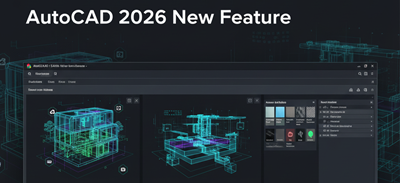
“AutoCAD 2026 advanced features showcasing new smart drafting and improved 3D design tools.”
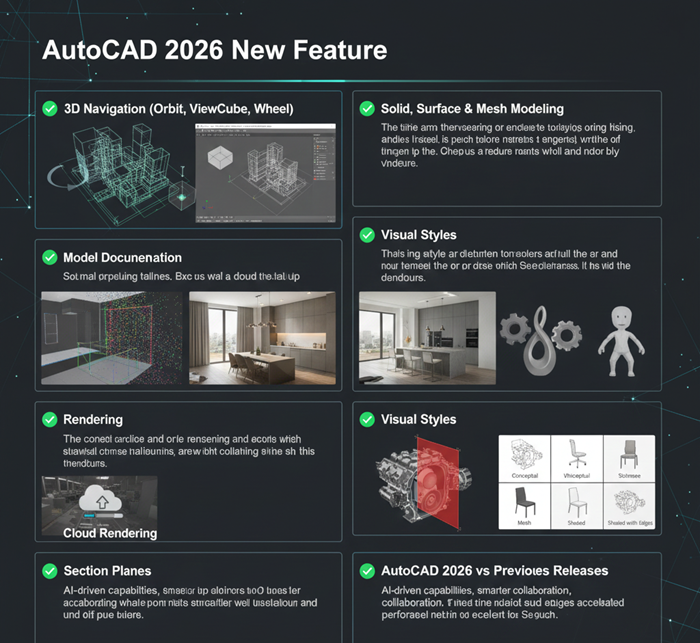
“Illustration of AutoCAD 2026 interface highlighting next-generation automation and precision features.”
Emojiautocad

See what’s new in AutoCAD 2026

From AI-powered automation to enhanced teamwork tools that transform how you design and collaborate.

1. File Opening and Starting Performance

AutoCAD 2026 introduces major performance upgrades that directly impact your daily workflow efficiency. From the moment you launch the software, you’ll feel the difference: quicker boot-ups, faster file access, and reduced delays when switching between drawings. Based on internal performance tests, files in DWG format can now open up to 11x faster than the previous version, and overall startup speed has improved by approximately 4x. These optimizations help teams deliver work more efficiently and maintain momentum on large projects.

2. Connected Supporting Files

AutoCAD 2026 introduces a smarter way for CAD managers to control project standards. Instead of configuring each user’s system separately, you can now apply a single, project-aware set of support files and preferences directly through Autodesk Docs. Every team member accessing a DWG file will automatically have the correct fonts, plot styles, and other essential resources loaded. This ensures drawings display and behave as intended, reduces setup time, and minimizes errors caused by missing support files.

3. Markup Import and Markup Assist with AutoDESK Documents

AutoCAD 2026 makes it easier to bring design feedback directly into your drawings. Markups stored in Autodesk Docs — including JPG, PNG, and PDF files — can now be imported and linked straight into your project. As reviewers continue adding comments or redlines in Autodesk Docs, those updates automatically appear in a dedicated Trace layer within AutoCAD. This seamless connection allows you to review notes, address changes using Markup Assist, and track open issues from Autodesk Docs without switching between different platforms.

4. Smart Blocks: Detect and Convert Tech Preview

Cleaning up large drawings often takes more time than creating them. With the latest AI-assisted block recognition in AutoCAD 2026, you can streamline that process. The system automatically detects commonly used objects and recommends converting them into blocks so your designs are easier to edit and more efficient to manage. Since this is an early technology preview, Autodesk is actively enhancing its accuracy and capabilities, allowing the tool to evolve with user feedback and ongoing development.

5. Smart Blocks: Search and Convert

Instead of scanning through a drawing line by line, AutoCAD 2026 gives you a faster, smarter method to find repeated content. The AI-driven search tool identifies similar objects and text entries, helping you replace them with appropriate block definitions. You can build a new block on the spot, reuse one from recent work, or select a recommended option from your current libraries. The result is a consistent and streamlined drawing structure that boosts editing speed and reduces file size.

6. Activity Insights

AutoCAD 2026 gives teams far greater visibility into how their design files are being used. With comprehensive multi-user activity logs, you can track more than 35 different actions—from version changes and file comparisons to newly added “What’s Changed” insights. These detailed records help you monitor progress, review updates, and maintain accountability across the entire project. The tracking works seamlessly whether your DWG files are stored in Autodesk Docs, saved locally, or hosted on approved third-party cloud platforms.


Advanced features of AutoCAD 2026

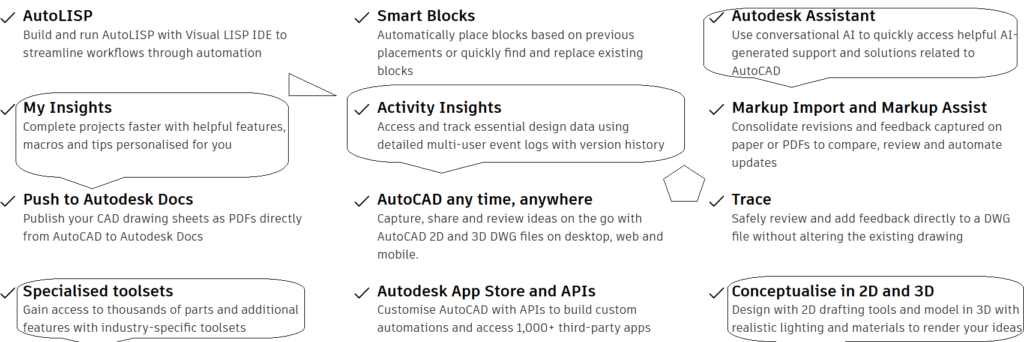
Autodesk Assistant

Get instant help without ever leaving your drawing space. Autodesk Assistant uses conversational AI to answer questions about features, commands, and design workflows right inside AutoCAD. Whether you’re troubleshooting a tool or exploring a new capability, the Assistant provides quick, summarized guidance and connects you to helpful learning resources. It’s built to keep your focus on designing—not searching for support.


ArcGIS® Basemaps

Give your site designs real-world context by linking geographic data directly to your drawings. With ArcGIS® Basemaps, you can choose from five map options including satellite imagery, aerial views, OpenStreetMaps, street references, and two modern monochrome styles. These high-quality map layers help anchor your plans to an accurate location and enhance the clarity of your presentations.


AutoLISP

Automate repetitive tasks and maintain CAD standards with the power of AutoLISP. Thousands of existing programs written for AutoCAD-based software can be used to speed up your workflows, enforce consistency, and eliminate manual processes. AutoLISP supports the widely used LSP, FAS, and VLX file formats, making customization and optimization easier than ever.


Hatch Enhancements

Enhance drawing readability with updated options for the HATCH command. You can now apply patterns, solid fills, and path-based textures even in open areas without pre-sealed boundaries. These improvements give you more flexibility to visually differentiate materials, surfaces, and design details. 


Smart Blocks: Placement

AutoCAD learns from how you design. The Smart Blocks placement feature analyzes previous insertions to automatically position and scale blocks where they logically fit next. By reducing the number of clicks needed to repeat common placements, you keep your workflow fast and consistent throughout the DWG file. 


Smart Blocks: Replacement

Finding and swapping blocks is now even more intuitive. Machine-learning suggestions help you replace one or multiple blocks with suitable alternatives drawn from your recently used blocks, recommended options, or blocks you select manually. This speeds up drawing edits and helps maintain standardized content. 


My Insights

Turn your everyday activities into time-saving opportunities. My Insights analyzes individual and team usage patterns to recommend tools, shortcuts, and macros that help you complete tasks faster. These personalized suggestions highlight helpful features you may not know yet, making productivity improvements effortless.


Count

Remove guesswork when quantifying design elements. The Count feature automatically detects and totals instances of objects or blocks across your entire drawing or within a selected area. You can filter, navigate, and review counts—and then generate fields or tables so quantities display clearly within your documentation.


Markup Import & Markup Assist

Accelerate the entire review cycle by bringing feedback directly into your drawings. AutoCAD lets you import markups from paper scans, mobile captures, and PDFs, then uses Autodesk AI to interpret redline text and apply certain changes such as MOVE, COPY, or DELETE automatically. This reduces tedious rework and helps you update drawings faster. 


Trace

Collaborate without altering your master file. The Trace feature allows colleagues to add comments, markups, and revision notes on a dedicated overlay layer from desktop, web, or mobile. You can review and address the feedback while keeping your original design intact, making change management smoother for both in-house and remote teams.


Web-Exclusive Functionality

AutoCAD subscribers gain access to expanded capabilities in AutoCAD on the web, including the AutoLISP API and batch plotting to multiple PDFs. These online enhancements support flexible workflows and ensure you can work efficiently from anywhere with just a browser.


2D Design & Drafting/ Annotations

Arrays

Easily repeat design elements with smart array tools. Create circular or rectangular patterns, or align multiple objects along any selected path. This allows you to build consistent layouts faster and update the entire pattern at once when changes are needed.


Centre Marks & Centerlines

Add precise centerlines and centre marks to circles and arcs for better measurement and clarity. These references stay locked to the geometry you created them for—so if you adjust the object’s position or size, the center marks move automatically to remain accurate.


Data Extraction

Generate up-to-date information from your drawing with just a few clicks. Pull data from objects, blocks, attributes, and even overall drawing properties into a structured table. This makes reporting, scheduling, and bill-of-materials breakdowns more efficient and error-free.


Data Linking

Keep your drawing tables synchronized with external data. By linking a Microsoft Excel spreadsheet directly to a table inside AutoCAD, updates on either side are automatically reflected—ensuring your documentation always matches the latest design information.


Dimensions

Speed up your annotation process with automatic dimensioning tools. Simply hover your cursor over elements to preview dimension placement before adding it, helping you document drawings more accurately in far less time.


Dynamic Blocks

Create intelligent blocks that adapt to design changes. Dynamic Blocks allow you to adjust shape variations, sizes, and configurations without needing multiple versions of the same symbol—giving you flexibility and reducing file clutter.


Fields

Insert fields into your text to keep information current. As related values change—such as dates, drawing names, or object properties—the displayed text updates automatically to remain correct in every revision.


Layouts

Organize your final plots with professional precision. Define sheet sizes, add title blocks, and display multiple views of your model in a single drawing file. Layouts help you prepare print-ready documentation efficiently and consistently.


Leaders

Create clean, well-structured callouts by attaching leaders to specific objects. Customize leader styles, add text or blocks as annotations, and format the line type to match your project’s standards for clarity and readability.


Parametric Constraints

Preserve design intent by enforcing relationships between elements. Apply geometric and dimensional constraints so that when one object adjusts, connected components update accordingly—keeping your drawing accurate throughout edits.


Purge

Quickly clean up outdated or unused elements to keep your project lightweight and organized. The Purge tool offers a preview before removal, making it easier to eliminate unnecessary objects while maintaining full control over what stays.


Revision Clouds

Highlight recent changes with visually clear revision clouds. They allow reviewers to easily spot updates between design versions and speed up approval workflows on collaborative projects.


Tables

Create smart tables that support formulas, symbol insertion, and data updates. Link to Excel spreadsheets when needed or automatically populate counts using design intelligence features like Count—ensuring your tables always reflect the correct quantities.


Text Settings

Add professional-quality text annotations with either single-line or multi-line formatting. Customize fonts, columns, spacing, and boundaries to ensure your notes remain readable and aligned with project standards.


Views

Save named views so you can jump back to a specific part of your model instantly. These saved views can also be applied to layout viewports to speed up sheet creation and ensure consistent viewing angles across documentation.

3D Design and Visuals


3d design autocad2026

Collaboration in AutoCAD 2026

DGN File Compatibility
Work seamlessly with project data that originates from MicroStation® or other DGN-based environments. AutoCAD enables you to import, export, or attach DGN files as underlays, allowing teams to share and utilize important information from external sources without the need for heavy re-work.

DWG Version Comparison
Eliminate guesswork when reviewing drawing updates. Instantly compare two different versions of a DWG file within the same workspace, helping you visualize design changes more clearly and accelerate approvals. 

Geographic Location with Online Maps
Bring real-world context straight into your CAD design. Insert precise geographic coordinates and overlay live online maps inside the drawing area to better plan site-specific layouts, infrastructure and terrain-based projects. 

Model Reference and Import Tools
Integrate external 3D models from Navisworks® or other supported software into your drafting environment by attaching them as underlays. You can also directly import additional model formats to keep all design data accessible in one place. 

PDF Data Reuse
Transform PDF drawings into editable CAD content. Import, export or attach PDF documents so that geometry, text and other important details can be repurposed instead of redrawn—ensuring faster workflows and improved data accuracy. Learn more

Sheet Set Manager
Organize your documentation efficiently. The Sheet Set Manager lets you manage, publish, and print multiple layouts as a unified sheet set, improving consistency and reducing manual coordination effort for complex documentation packages.  

Save to Web & Mobile
Work from anywhere without missing a beat. Save your DWG files—including external references (Xrefs)—to Autodesk’s cloud platform, enabling you to open, review and edit your drawings via AutoCAD Web or the mobile app.  

Shared Views for Collaboration
Accelerate feedback cycles by publishing secure, web-based design views that stakeholders can view and comment on in their browser—no CAD installation required. It’s a simple way to gather insights and validate design intent quickly.  

External Reference (Xref) Compare
Track modifications in referenced files with precision. Compare previous and updated versions of attached Xrefs to visually detect changes and ensure design accuracy throughout the project lifecycle.  
Learn more


Major Innovations Added to AutoCAD Since 2016

Over the years, AutoCAD has evolved into a smarter, faster and more collaborative design platform. Below is an expanded overview of the top enhancements introduced since the 2016 release, highlighting new automation, performance boosts and cloud-enabled workflows.

Autodesk Assistant
Get instant guidance inside AutoCAD whenever you’re stuck. This conversational AI tool helps you find solutions, understand features and overcome design challenges without interrupting your workflow or leaving the interface.

Activity Insights
Easily keep track of how shared drawings evolve over time. Detailed event logs display activity recorded by multiple contributors, including version tracking, visual comparison tools and key file properties—ensuring you’re always aware of what changed and when.

Faster File Opening
Performance improvements help your design data load noticeably quicker. In typical testing, 2D files open roughly twice as fast in AutoCAD 2025 compared to AutoCAD 2024, making everyday drafting smoother and more responsive.**

Smart Blocks Technology
AI-enhanced block tools allow you to automatically insert or swap blocks based on usage context. You can also search your drawings for elements that can be converted into existing, recently used or recommended blocks for improved consistency.

Markup Import + Markup Assist
Bring feedback from PDFs or printouts directly into your DWG files. The system can detect markups and assist with incorporating revision suggestions into the drawing, helping reduce manual rework.

My Insights
Personalized tips and feature recommendations help you discover shortcuts and new capabilities that improve your drafting productivity over time.

AutoCAD on the Web APIs
Automate cloud workflows using AutoLISP directly in AutoCAD Web. This allows companies to streamline tasks and integrate web-based design processes with existing automation.

Trace
Safely collect feedback layers directly on top of your design without altering the original drawing content — perfect for review sessions and collaboration.

Count Automation
Automatically calculate quantities of blocks or selected geometry with a single command, reducing counting errors and saving significant time on documentation.

Share Command
Securely send lightweight, controlled access copies of drawings to teammates or clients so they can review designs from any location.

Push to Autodesk Docs
Export your sheet sets as PDFs straight to Autodesk Docs, creating a smooth CAD-to-project-management connection.

Drawing History
View a clear timeline of edits made to a file across its lifecycle. (This capability is now integrated into Activity Insights as of AutoCAD 2025.)

Xref Version Comparison
Quickly identify modifications between different external reference files without switching windows, improving accuracy and oversight.

Blocks Palette Enhancements
Insert commonly used blocks more efficiently from your Libraries tab—whether you’re working on desktop or via AutoCAD Web.

Quick Measure Tool
Hover your cursor and instantly view nearby distances, angles, areas and perimeter values—no command typing needed.

Enhanced Trim & Extend
The updated Quick mode automatically recognizes all logical boundaries, making editing actions faster and more intuitive.

Redesigned Purge Tool
Remove unnecessary elements from your drawing with visual previews and multi-selection controls to keep files clean and lightweight.

DWG Compare Improvements
Compare two file versions in real time while staying inside the same workspace, speeding up revision reviews.

Point Cloud Integration
Attach scan-based datasets captured by terrestrial laser scanners or other measurement systems to establish a geometric foundation for your designs.

PDF Import Enhancements
Reuse content stored in PDFs by converting geometry, SHX text, TrueType fonts and raster images into accurate DWG entities.

AutoCAD Anywhere Access
Switch effortlessly between desktop, web and mobile apps so you can design, review and edit whether you’re in the office or onsite.*

Save to Web & Mobile
Maintain your xrefs and related design files when saving to the cloud for consistent access across devices.

Improved View & Viewport Management
Saved views can be added directly to layout viewports, simplifying sheet creation and presentation work.

High-Resolution Display Support
Enjoy sharp visual clarity with interface scaling optimized for 4K and higher-resolution monitors.

Off-Screen Selection
Selected elements stay highlighted even when you pan or zoom away from them, making edits easier in large drawings.


Additional Improvements Since 2016

Autodesk App Store
Explore a growing ecosystem of more than 1,000 specialized AutoCAD apps to extend software capabilities.

2D Graphics Upgrades
Enhanced visual stability and performance deliver up to nine-times faster layout tab switching when comparing AutoCAD 2024 with AutoCAD 2023.**

Faster Installation
AutoCAD 2024 installs up to twice as fast as the previous version, minimizing downtime.**

Sheet Set Management Online
As of 2023, plotting of sheet sets is supported from AutoCAD Web when drawings reside in Autodesk Docs projects.*

Floating Drawing Windows
Undock drawings and place them side by side or on separate screens without launching additional AutoCAD instances (introduced in 2022).

3D Navigation Speed
Orbiting and interacting with 3D models feels significantly quicker—up to 10x faster since the 2020 enhancements.**

Reduced Save Time
Design files now save approximately one second faster on average, a boost that adds up on larger projects.**

Quicker STEM-Drive Installs
Faster installation performance—up to 50% improvement on SSD storage drives (2020).**

Modern Dark Theme
An updated interface with rich blue tones and improved contrast for comfortable viewing during long sessions (2020).

Refreshed UI Design
Crisp icons, simplified toolbars and intuitive panels improve navigation and usability (2019).

DWG Format Upgrade
A refined file format introduced in 2018 supports more efficient save, move and copy operations.

TrustedDWG Technology
Stay protected from compatibility issues with built-in alerts that confirm DWG fidelity and data integrity.